Master Procreate: Digital Art on iPad in 5 Steps

Master Procreate: Digital Art on iPad in 5 Steps

🧰

Instant Toolkit

3 artifacts

📋
Step-by-Step Guide

1

Acquire Compatible Gear

  • Ensure you have an iPad running iPadOS 16.3 or later (check in Settings > General > About).
  • Purchase Procreate for a one-time fee of $12.99 USD from the App Store: apps.apple.com/us/app/procreate/id425073498.
  • Pair an Apple Pencil (1st, 2nd gen, USB-C, or Pro) for pressure-sensitive drawing.
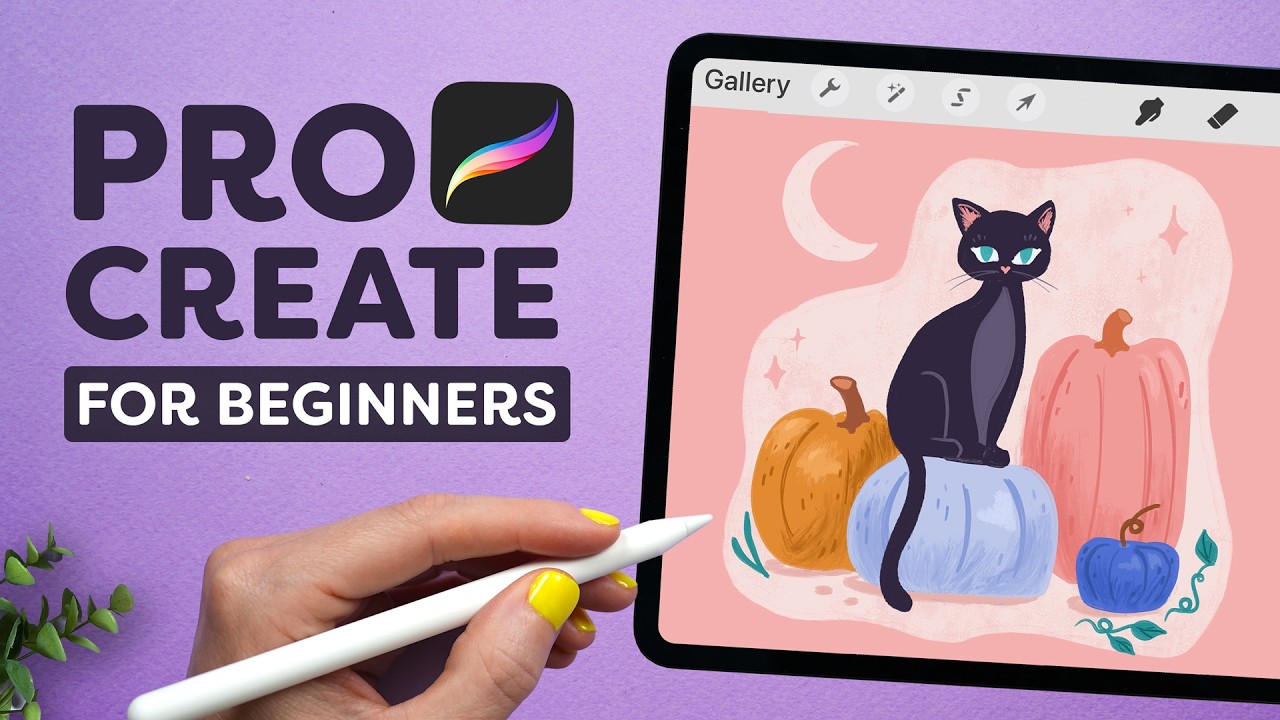
  • Open Procreate, grant permissions, and create your first canvas via the + button (Gallery view).

Explore the Gallery

  • Swipe to view canvases.
  • Tap wrench icon (Actions) > Help to access the built-in Handbook.
Why this step matters:
  • -Establishes a reliable creative environment for all future work
  • -Prevents compatibility issues that halt early progress
30-60 minutes
iPad (iPadOS 16.3+), Procreate app, Apple Pencil, App Store
$13-$1,300
Definition of Done
  • Procreate installed and launched successfully
  • First canvas created and basic navigation tested
  • Handbook accessed via Actions menu
Common Mistakes to Avoid

Using an incompatible iPad model

Verify iPadOS version and upgrade if needed; see help.procreate.com for compatibility

Skipping Apple Pencil pairing

Attach Pencil magnetically or via Lightning/USB-C and follow on-screen prompts

Not updating the app after install

Check App Store > Profile > Update All

2

Following along, or just reading? 👀

Spin up a personalized “learn Procreate” plan you can save, check off, and return to anytime — unlimited on the free trial.

Start free trial →
3
4
5